


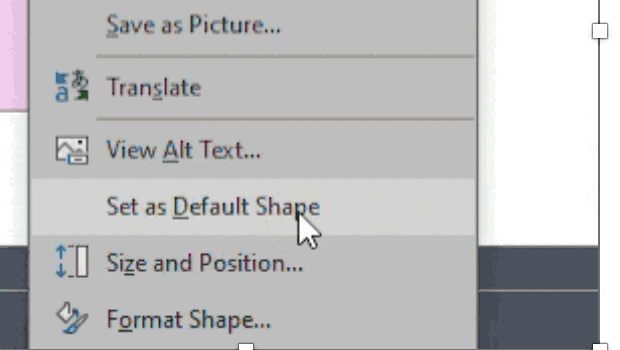
One way to make working in PowerPoint smoother is to set default shapes, lines, and text box styles so you have things the way you want them right from the start. Here’s how.
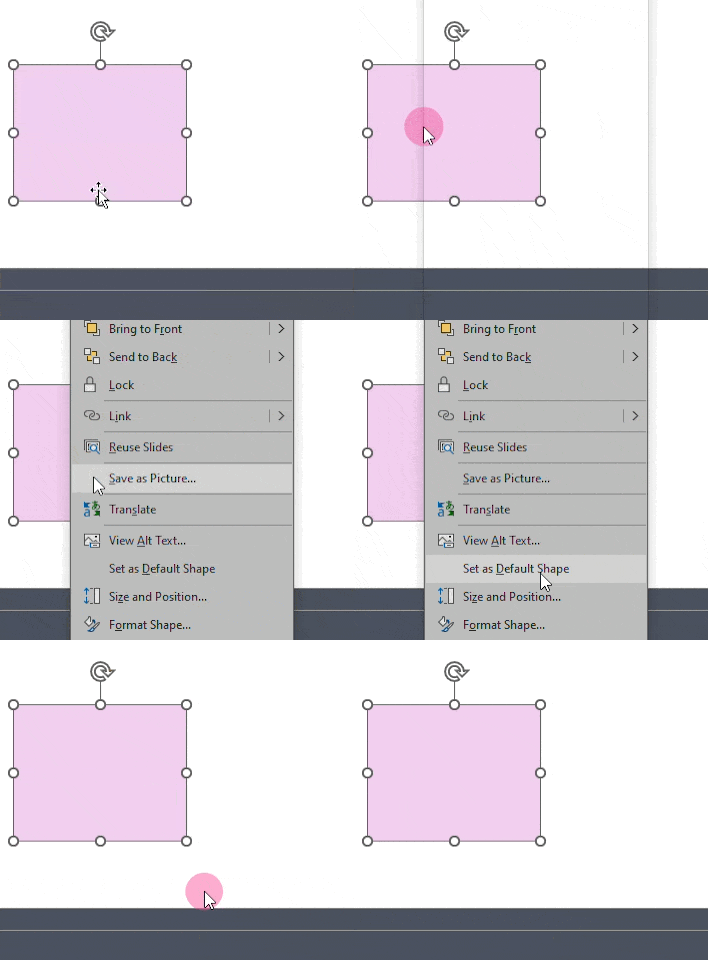
Start by putting a shape (any kind), a line, and a text box on a slide.
Format each one to your preference and then right-click on each one and choose “set as default [shape/line/text box].”
For example, the first thing I do is set my textbox to default with zero padding.
This article was last modified on October 30, 2025
This article was first published on August 8, 2025
Commenting is easier and faster when you're logged in!

Recommended for you
How to Keep AI-Generated Presentations Fully Editable
An AI-assisted workflow that actually works, so your files are beautiful and fun...

50 Classic Tips From 50 Issues
David Blatner digs into the InDesign Magazine archives to deliver one great tip...

Example Course
This course content shows under the About tab on the main Course page. You can l...