




In this “Three Minutes Max” video, Mike Parkinson shows how to create a scrolling timeline in PowerPoint with a parallax effect. He demonstrates that by moving the background image slightly between slides and the foreground timeline elements quite far, it gives the illusion of depth. Mike adds in the morph transition for a seamless look as elements glide between slides.
Three Minutes Max comes from a fun—yet very competitive—session at our annual CreativePro Week conference. Speakers have three minutes to wow the audience with the tip and win a prize for a lucky conference attendee.
Subscribe to the CreativePro YouTube channel for more helpful design tips!
This article was last modified on August 29, 2025
This article was first published on August 9, 2024
Commenting is easier and faster when you're logged in!

Recommended for you
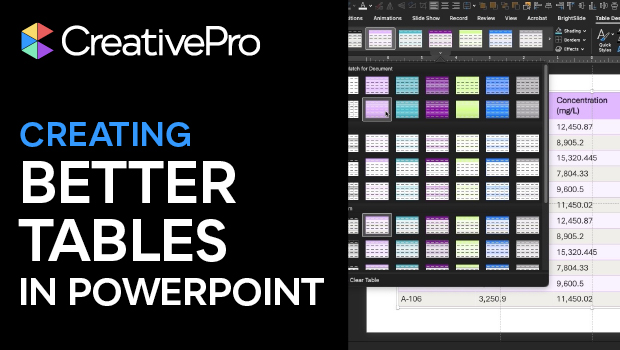
Tips for Creating Better Tables in PowerPoint
Making tabular data in PowerPoint look good can be challenging, but Stephy Hogan...
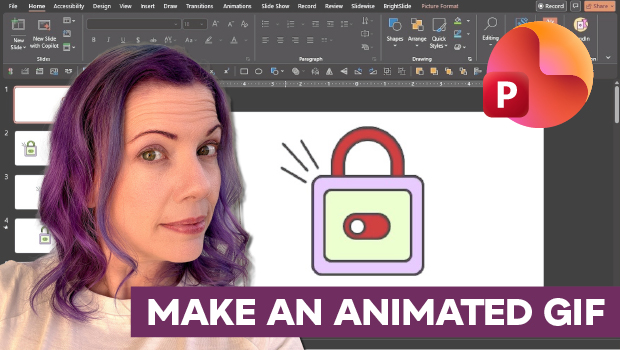
How to Make an Animated GIF in PowerPoint
Create a looping animation in PowerPoint using the Morph transition.
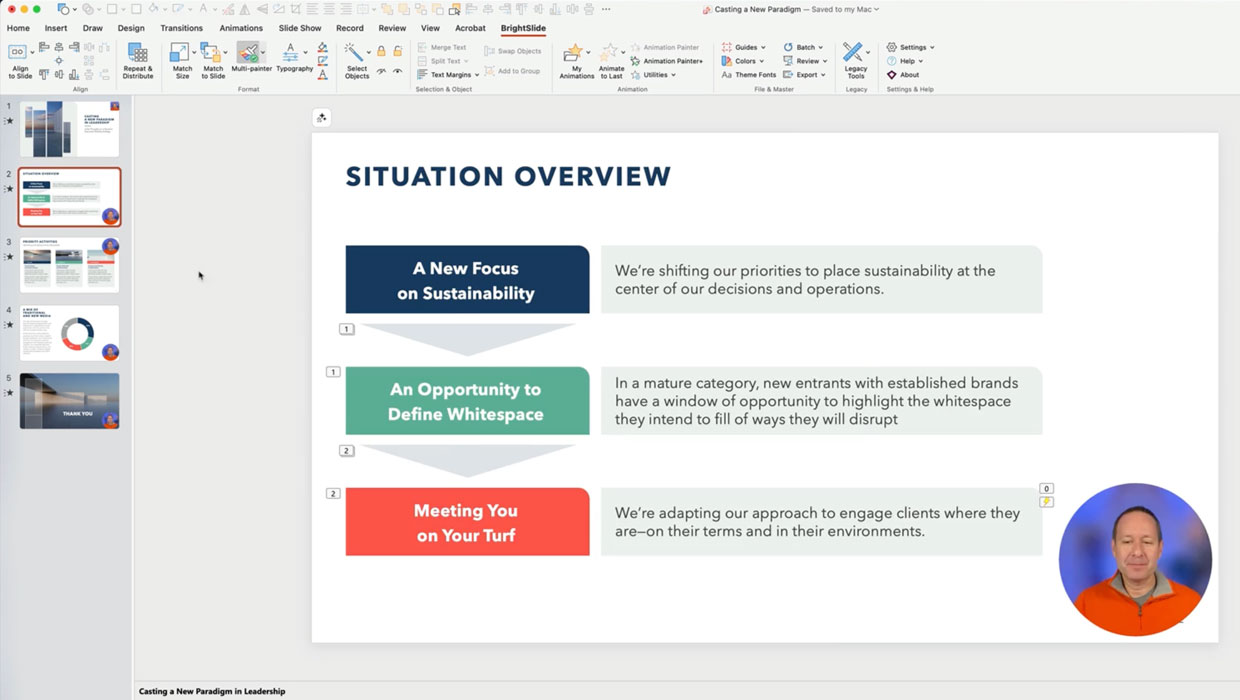
Members-Only Video: Using the Built-in Recording Tools in PowerPoint
Learn how to record your PowerPoint presentation so it can be played back later...