



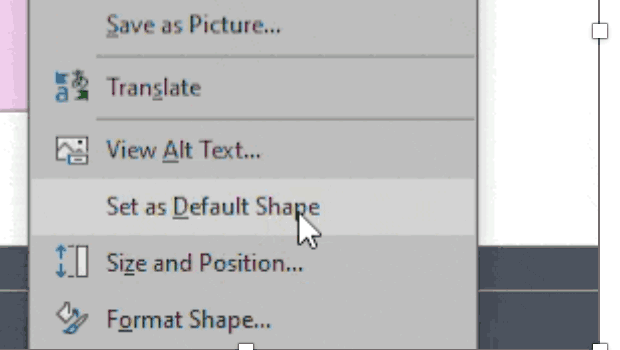
One way to make working in PowerPoint smoother is to set default shapes, lines, and text box styles so you have things the way you want them right from the start. Here’s how.
Start by putting a shape (any kind), a line, and a text box on a slide.
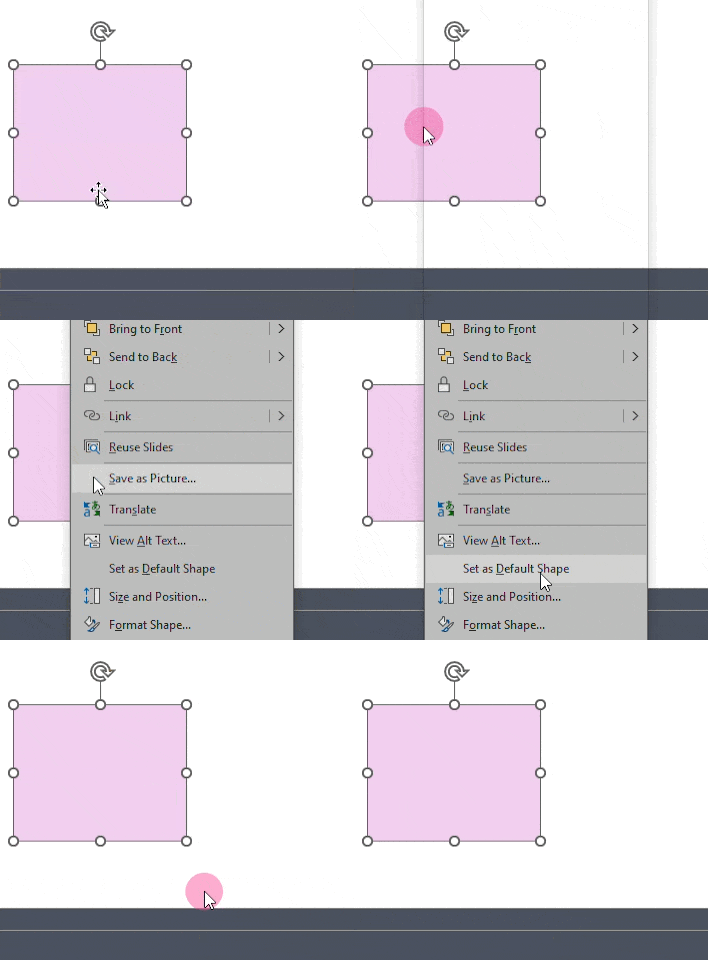
Format each one to your preference and then right-click on each one and choose “set as default [shape/line/text box].”
For example, the first thing I do is set my textbox to default with zero padding.
This article was last modified on October 30, 2025
This article was first published on August 8, 2025
Commenting is easier and faster when you're logged in!

Recommended for you

Members-Only Video: Essential Tips and Tricks Every InDesign User Needs
David Blatner demonstrates some of his all-time favorite tips and tricks for InD...

How to Create Attention-Grabbing Agenda Slides for Presentations
Do your agenda slides need a makeover? Jody Wissing's step-by-step approach will...

Work Week Projects: Customizing PowerPoint
Five quick exercises to do while you're at work to make working in PowerPoint mo...