



This tip was sent to Tip of the Week email subscribers on May 14, 2015.

Sign up now and every week you’ll get a new InDesign Tip of the Week and Keyboard Shortcut of the Week, along with roundups of new articles at InDesignSecrets and CreativePro, plus exclusive deals sent right to your Inbox!
Just scroll all the way down to the bottom of this page, enter your email address, and click Go! We’ll take care of the rest. Now, on with the tip!
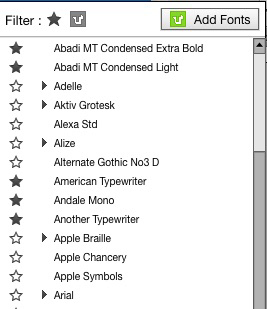
It’s great that InDesign gives you the option for WYSIWYG previews in the fonts menus of the Control panel and Character panel. But even better is the fact that you can choose the size of those font previews. Just go to Type preferences and choose Font Preview Size: Small, Medium, or Large.
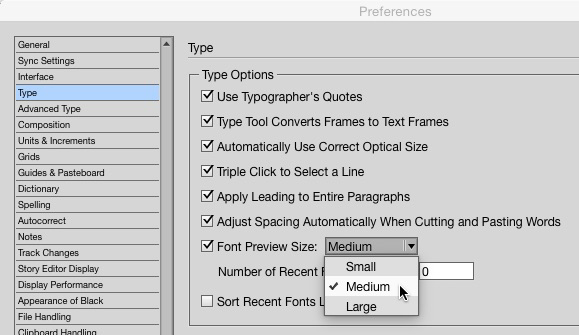
Sadly, even “Large” isn’t all that large with some fonts.
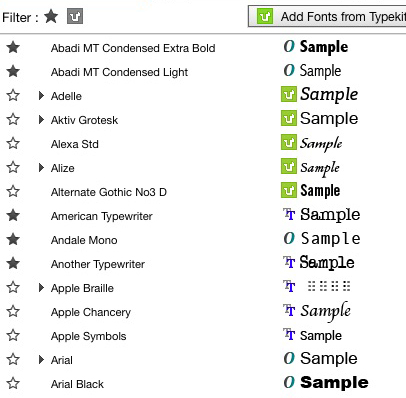
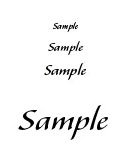
Here’s a shot of InDesign’s three sizes (displaying the font Alexa Std), compared to Photoshop’s “Huge” font preview option. Sigh.
Still, having a choice is always better than no choice. And you can always magnify part of your screen with the tips in the InDesignSecrets article mentioned above.
Or, if you’re so knowledgeable about fonts that you don’t even need WYSIWYG previews at all, you can turn them off by deselecting the option for Font Preview Size.
This article was last modified on July 25, 2019
This article was first published on May 19, 2015
Commenting is easier and faster when you're logged in!

Recommended for you
Before&After: How to Design a Second Page
You've designed a beautiful outside. How do you follow it up inside? Simply.
Tips to Control Photoshop Layers
Khara Plicanic shares smart Photoshop Layers panel tips to help you find and man...
Navigating and Customizing the Premiere Interface
Are you a Premiere beginner? Get started and customize your workspace with Myra...