




This tip was sent to Tip of the Week email subscribers on October 9, 2014.

Sign up now and every week you’ll get a new InDesign Tip of the Week and Keyboard Shortcut of the Week, along with roundups of new articles at InDesignSecrets and CreativePro, plus exclusive deals sent right to your Inbox!
Just scroll all the way down to the bottom of this page, enter your email address, and click Go! We’ll take care of the rest. Now, on with the tip!
Ever need to align numbers in a table based on their decimal points? You might wonder if such a thing is even possible, since you usually don’t have any tabs in your table. But, you can still align text based on a specific character, like a decimal point in a number. Here’s how.
First, make sure the text is left-aligned in the Paragraph Options. Now select the table cells or columns that hold the numbers.
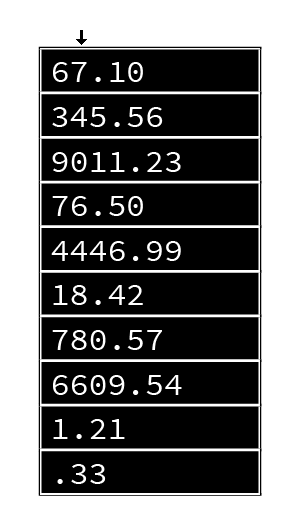
Then, even though you haven’t typed any tabs, choose Type > Tabs to open up the tab options.
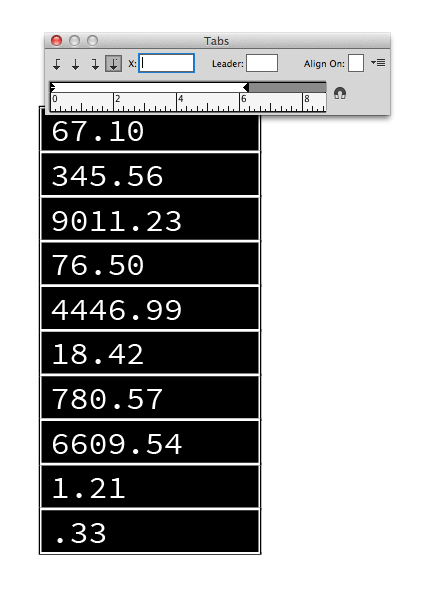
Finally, choose the “align on decimal”-tab and click on the ruler to set the position.
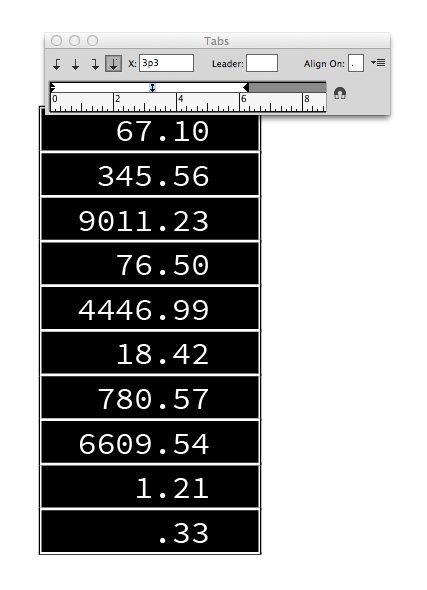
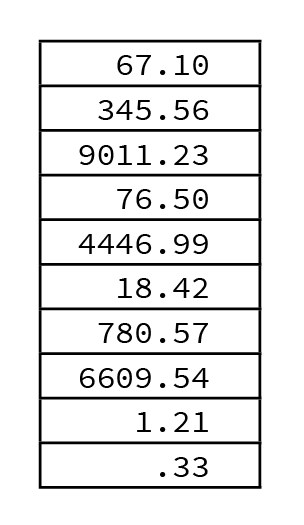
You’ll notice your numbers start aligning automatically.
This article was last modified on July 25, 2019
This article was first published on October 14, 2014
Commenting is easier and faster when you're logged in!

Recommended for you

Tips to Control Photoshop Layers
Khara Plicanic shares smart Photoshop Layers panel tips to help you find and man...

Before&After Design Tip: Too Many Focal Points? Just Send ’Em to the Back!
What do you do when your artwork is bolder than your text?

How to Be a Better Graphic Designer: Sweat the Details
Nigel French reminds us how much the little things matter in design.