


Photoshop How-To: Going from Brunette to Blond

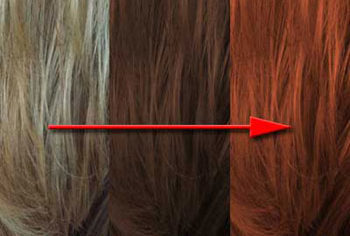
Changing hair color – digitally — is often simply a matter of adding a Hue/Saturation adjustment layer. However, when the hair needs substantial lightening, such as when converting from brunette to blond, the Selective Color command may be more effective.
When starting with blond, a simple “dye job” can be provided with a Hue/Saturation adjustment layer. Check the Colorize box and adjust the sliders for the look you want.
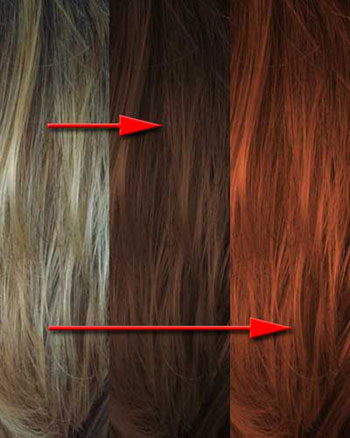
The original is on the left. In the center, the Colorize box was checked in the Hue/Saturation dialog box and the sliders were set to Hue: 20; Saturation: 35; Lightness: -55. On the right, with Colorize checked, the sliders were set to Hue: 15; Saturation: 57; Lightness: -31.
Going from dark hair to light presents some additional challenges. Sometimes the Lightness slider of the Hue/Saturation adjustment is suitable. Other times you may have good luck with a Curves adjustment. But your best bet may be to head straight for a Selective Color adjustment layer.
When the Selective Color dialog box opens, click the radio button “Absolute” at the bottom, then at the top, switch the pop-up menu from Reds to Neutrals. Reduce the Cyan and Magenta content proportionally, then balance the appearance with the Yellow and Black sliders. Switch from Neutrals to Blacks and repeat.
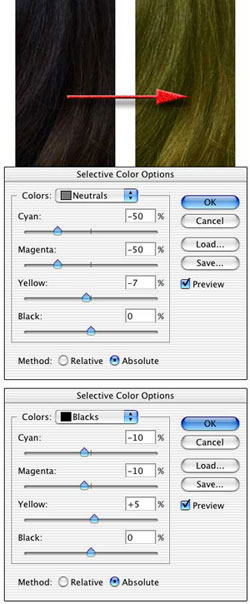
The correct values depend both on your original image and your intent. The same original dark hair can produce a variety of lighter looks with this technique.
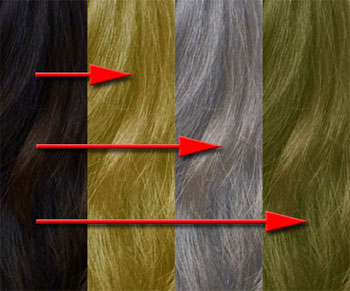
The original is on the left. The three adjustments are, working left to right form the original:
- Left:Neutrals -50/-50/0/-80 & Blacks -47/-42/-16/+25
- Middle: Neutrals -50/-50/-40/-82 & Blacks -50/-50/-50/+50
- Right: Neutrals -50/-50/-56/-4 & Blacks -50/-50/+39/+63
This story brought to you by the National Association of Photoshop Professionals (NAPP). Copyright © 2004 KW Media Group. Photoshop is a registered trademark of Adobe Systems, Inc.
This article was last modified on January 3, 2023
This article was first published on April 9, 2004
Commenting is easier and faster when you're logged in!

Recommended for you
How to Turn a Photo into Graffiti in Photoshop
Create a spray-painted masterpiece in Photoshop with Steve Caplin.
How to Adjust Colors Using Photoshop’s Contextual Task Bar
Learn how to use the Photoshop Adjust Colors feature to make quick, non-destruct...

Using Photoshop’s Generative Fill to Remove Objects
Learn how to simply remove items from an image in Photoshop, without extra conte...