


This tutorial is an installment of The Russell Brown Show.
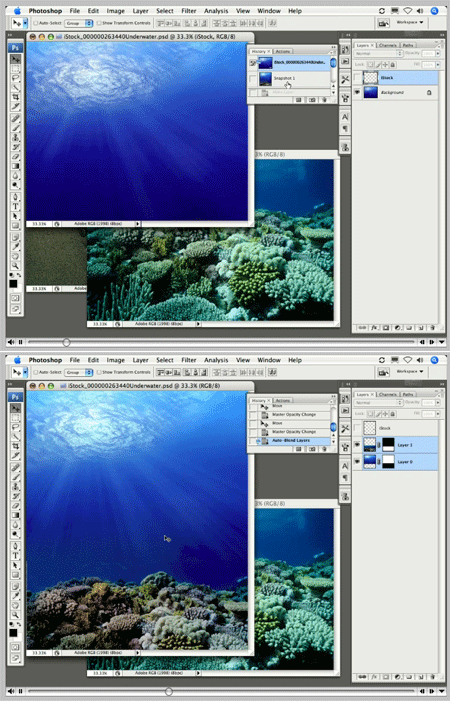
In this video, Russell demonstrates how to use Photoshop CS3’s Auto-Blend feature to combine multiple photos. The resulting image not only merges the two sources, but blends their texture and shading like magic.
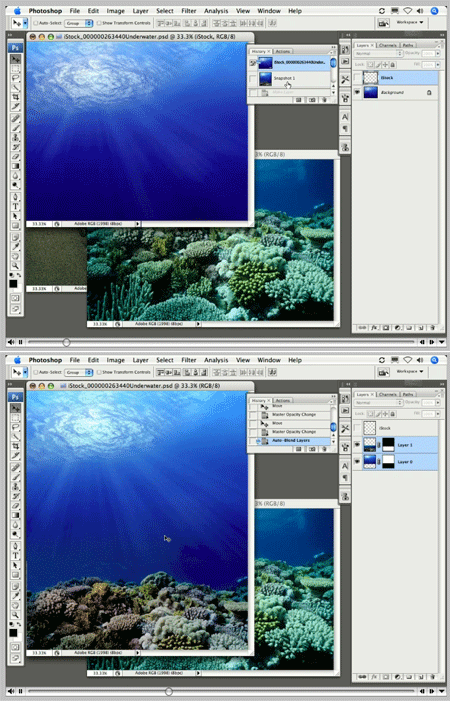
Auto-blending can be for practical purposes…
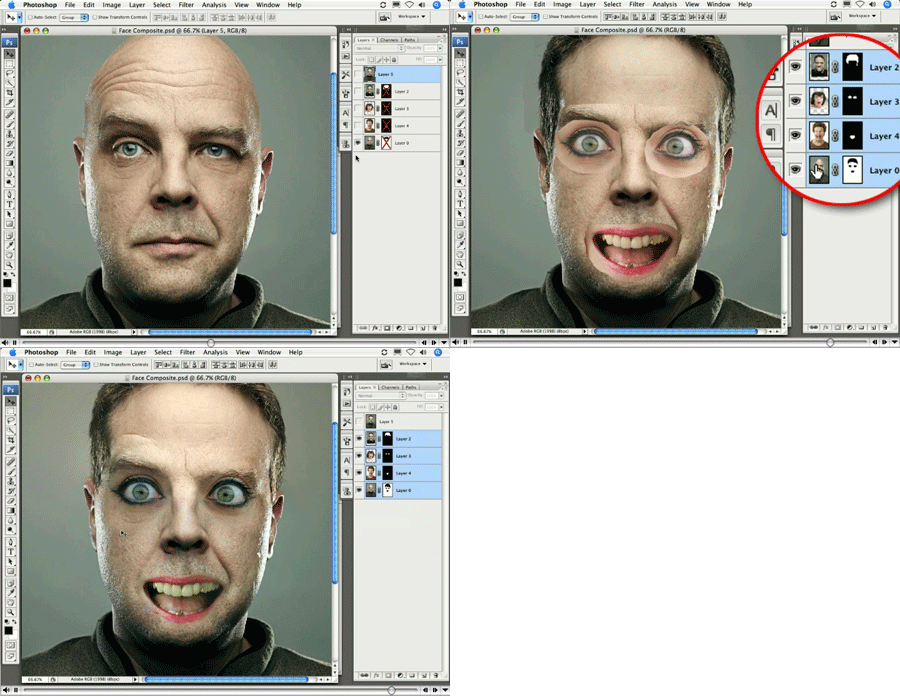
Or, um, less-than-practical purposes.
Click on “Auto-Blend Magic” to begin streaming the 7.2MB QuickTime Tutorial.
You can also cut and paste the following URL into your Web browser’s address filed: https://av.adobe.com/russellbrown/BlendingSM.mov
This article was last modified on January 4, 2023
This article was first published on October 8, 2007
Commenting is easier and faster when you're logged in!

Recommended for you
How to Turn a Photo into Graffiti in Photoshop
Create a spray-painted masterpiece in Photoshop with Steve Caplin.
How to Adjust Colors Using Photoshop’s Contextual Task Bar
Learn how to use the Photoshop Adjust Colors feature to make quick, non-destruct...

Using Photoshop’s Generative Fill to Remove Objects
Learn how to simply remove items from an image in Photoshop, without extra conte...