


Photoshop 7: Using Brush Shapes and Textures

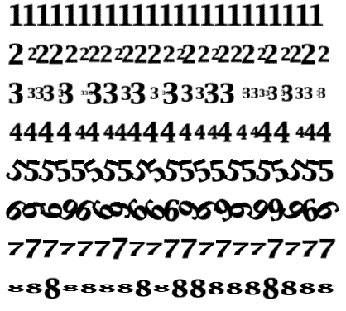
Dual Brush
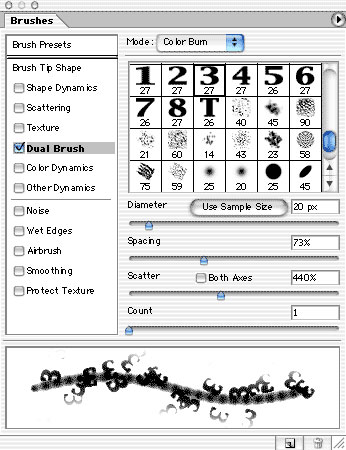
The Dual Brush option adds another brush tip to the tip selected in Brush Presets or Brush Tip Shape. The second tip is overlaid using the blending mode at the top of the Dual Brush pane of the Brushes palette. The Dual Brush pane is a cross between the Brush Tip Shape and Scattering panes. In addition to selecting the second brush tip and blending mode, you adjust the second tip for diameter, spacing, scatter, and count.
You can use Dual Brush to add a texture to a brush (upper example) or to add a custom brush within a shape defined by the initial brush tip (lower example).
This story brought to you by the National Association of Photoshop Professionals (NAPP). Copyright 2002 KW Media Group. Photoshop is a registered trademark of Adobe Systems, Inc.
This article was last modified on January 3, 2023
This article was first published on June 25, 2002
Commenting is easier and faster when you're logged in!

Recommended for you

Using Photoshop’s Generative Fill to Remove Objects
Learn how to simply remove items from an image in Photoshop, without extra conte...
How to Turn a Photo into Graffiti in Photoshop
Create a spray-painted masterpiece in Photoshop with Steve Caplin.
How to Adjust Colors in Photoshop Using Hue and Saturation
Learn how to manipulate an image’s colors using Photoshop’s Hue and Saturation s...