




This InDesign tip on how to tidy up your tables was sent to Tip of the Week email subscribers on October 5, 2017.

Sign up now and every week you’ll get a new tip, keyboard shortcut, and roundups of new articles, plus exclusive deals sent right to your Inbox!
Just scroll down to the bottom of this page, enter your email address, and click Go! We’ll take care of the rest. Now, on with the tip!
Need to keep some rows of a table together on a page?
Here’s how: Select the rows with the Type tool, choose Table > Cell Options > Rows and Columns, then enable Keep with Next Row. Unfortunately, there’s no option to make this happen automatically with a table style or cell style.
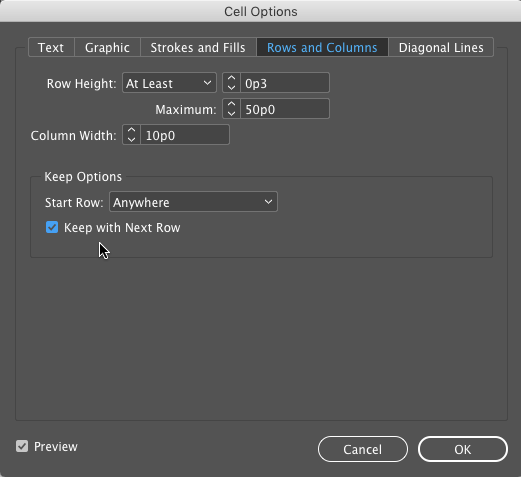
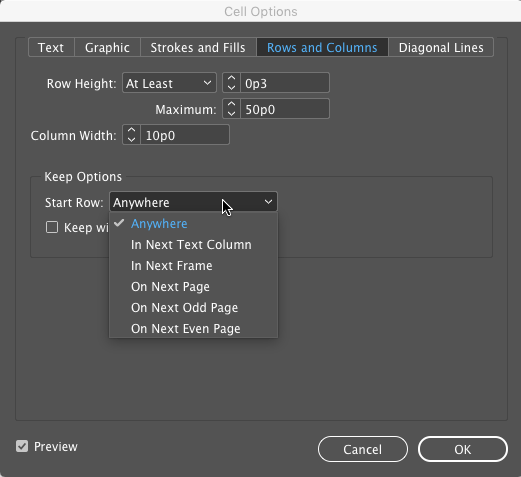
Or, if you want to force rows to start in the next column, frame, or page, you can do that too, with the Keep Options in the Cell Options dialog box.
This article was last modified on July 20, 2021
This article was first published on October 10, 2017
Commenting is easier and faster when you're logged in!

Recommended for you

Free Webinar: Animate Your Marketing Graphics with Photoshop
Learn how to create eye-catching animated GIFs, motion graphics, and simple vide...

How to Extract a Table from a PDF in Acrobat
Get your data out of a PDF and into an Excel Workbook with this quick Acrobat tr...
How to Add Paragraph Rules in PowerPoint
This clever workaround creates InDesign-like paragraph rules in PowerPoint.