



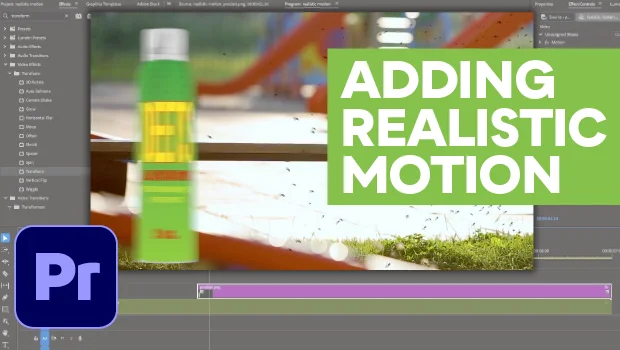
In this Premiere how-to video, Myra Ferguson uses the Transform effect to make animation look more convincing. First, she sets keyframes to slide an object into her frame, and then she applies Temporal Interpolation, which helps smooth out the motion. Finally, Myra completes the effect by adding Motion Blur to the object.
Subscribe to the CreativePro YouTube channel for more helpful design tips!
This article was last modified on September 15, 2026
This article was first published on September 15, 2026
Commenting is easier and faster when you're logged in!

Recommended for you

Closed Captioning in Premiere
Add captions to your Premiere video to ensure everyone benefits from its audio t...
Animating a Photoshop Document with Premiere
Put your Photoshop files in motion with Adobe Premiere!
Navigating and Customizing the Premiere Interface
Are you a Premiere beginner? Get started and customize your workspace with Myra...