



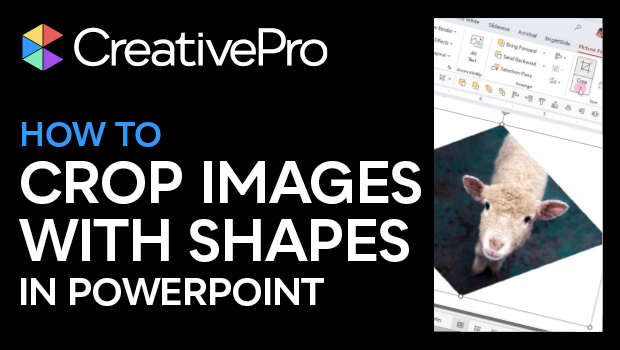
In this PowerPoint how-to video, Stephy Hogan shows how to use a shape as an image frame. She uses the Crop to Shape function to use the shape as a clipping path. Stephy also demos choosing the shape’s aspect ratio and fitting the image to the frame and vice versa.
Subscribe to the CreativePro YouTube channel for more helpful design tips!
This article was last modified on October 30, 2025
This article was first published on June 24, 2025
Commenting is easier and faster when you're logged in!

Recommended for you

Livestream Video: Creating 3D Lettering Using Illustrator’s Inflate Tool
Join Khara Plicanic as she shows how to create stunning 3D lettering with Illust...

Quick Wins: Presentation Design Skills
Use these five resources to boost your presentation design and production skills

Adobe Unveils Major Expansion of Creative Agent Across Firefly and Creative Cloud Apps Including Photoshop and Premiere
Adobe is giving creative professionals an AI Assistant that orchestrates multi-s...