


To create the best masks, you need to make the most accurate selections. Photoshop CS4’s Color Range tools give you an easy way to create more subtle, refined, and targeted selections.
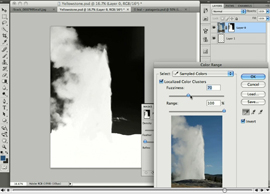
In this tutorial, you’ll use the new Masks panel to choose one or more localized color clusters (there’s a mouthful!); then adjust the sampled color range with a handy slider. While that may sound confusing, it’s easy to follow along with this video how-to.
Stream the 10.6MB QuickTime tutorial in a separate window by clicking the image below.
This article was last modified on January 5, 2023
This article was first published on May 7, 2009
Commenting is easier and faster when you're logged in!

Recommended for you
How to Adjust Colors in Photoshop Using Hue and Saturation
Learn how to manipulate an image’s colors using Photoshop’s Hue and Saturation s...
How to Turn a Photo into Graffiti in Photoshop
Create a spray-painted masterpiece in Photoshop with Steve Caplin.
How to Adjust Colors Using Photoshop’s Contextual Task Bar
Learn how to use the Photoshop Adjust Colors feature to make quick, non-destruct...