




This CreativePro Tip of the Week on matching zoom and location in Photoshop was sent to CreativeProse email subscribers on March 22, 2017.
Sign up now and every week you’ll get a new tip, plus roundups of new articles, and exclusive deals sent right to your Inbox!
Just scroll down to the bottom of this page, enter your email address, and click Submit! We’ll take care of the rest. Now, on with the tip!
When you’re trying to choose between a few similar images in Photoshop, it can be helpful to view them side-by-side at the same location and zoom level. To do this, choose Window > Arrange > Tile.
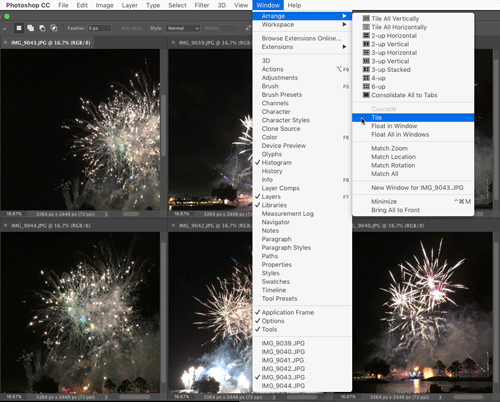
Then to zoom the images in unison, hold the Shift key as you click or drag any of the images with the Zoom tool.
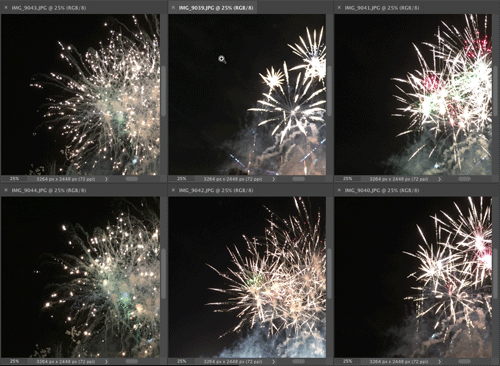
To pan the images in unison, hold the Shift key as you drag any of the images with the Hand tool.
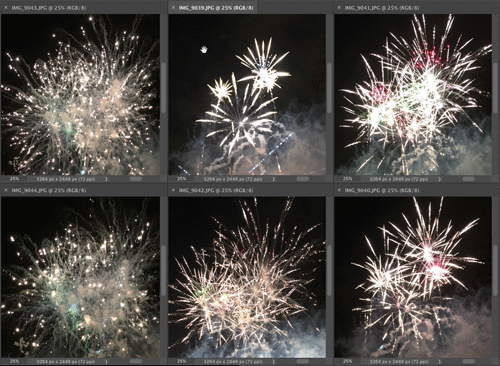
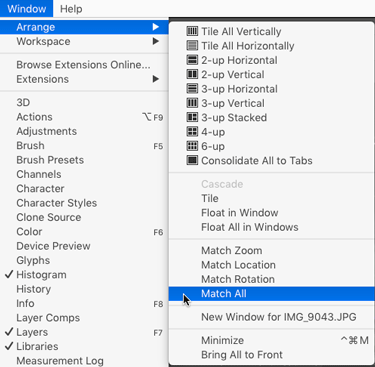
You can also select one of the tiled images, arrange it to your liking, and then to make the others match it choose Window > Arrange > Match All (or Match Zoom, Match Location, or Match Rotation if any of those is all you want to match).
When you want to go back to a tabbed view of your files, choose Window > Consolidate All to Tabs.
This article was last modified on March 27, 2017
This article was first published on March 27, 2017
Commenting is easier and faster when you're logged in!

Recommended for you
How to Adjust Colors in Photoshop Using Hue and Saturation
Learn how to manipulate an image’s colors using Photoshop’s Hue and Saturation s...
How to Turn a Photo into Graffiti in Photoshop
Create a spray-painted masterpiece in Photoshop with Steve Caplin.

Using Photoshop’s Generative Fill to Remove Objects
Learn how to simply remove items from an image in Photoshop, without extra conte...