



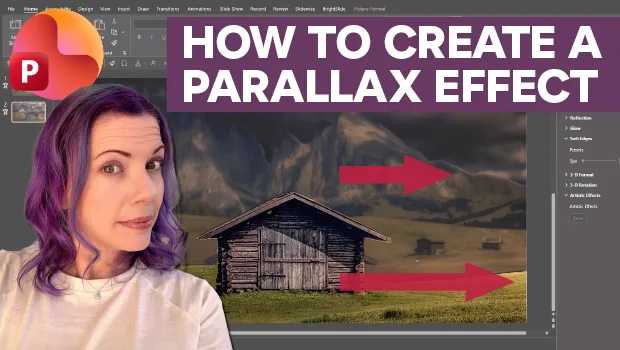
In this PowerPoint how-to video, Stephy Hogan shows how to create a 3D parallax scrolling effect. First, she divides the image into multiple background and foreground layers using the Freeform shape tool. Then she moves and resizes her layers before adding the Morph transition to create the animation.
Subscribe to the CreativePro YouTube channel for more helpful design tips!
This article was last modified on October 2, 2026
This article was first published on October 2, 2026
Commenting is easier and faster when you're logged in!

Recommended for you
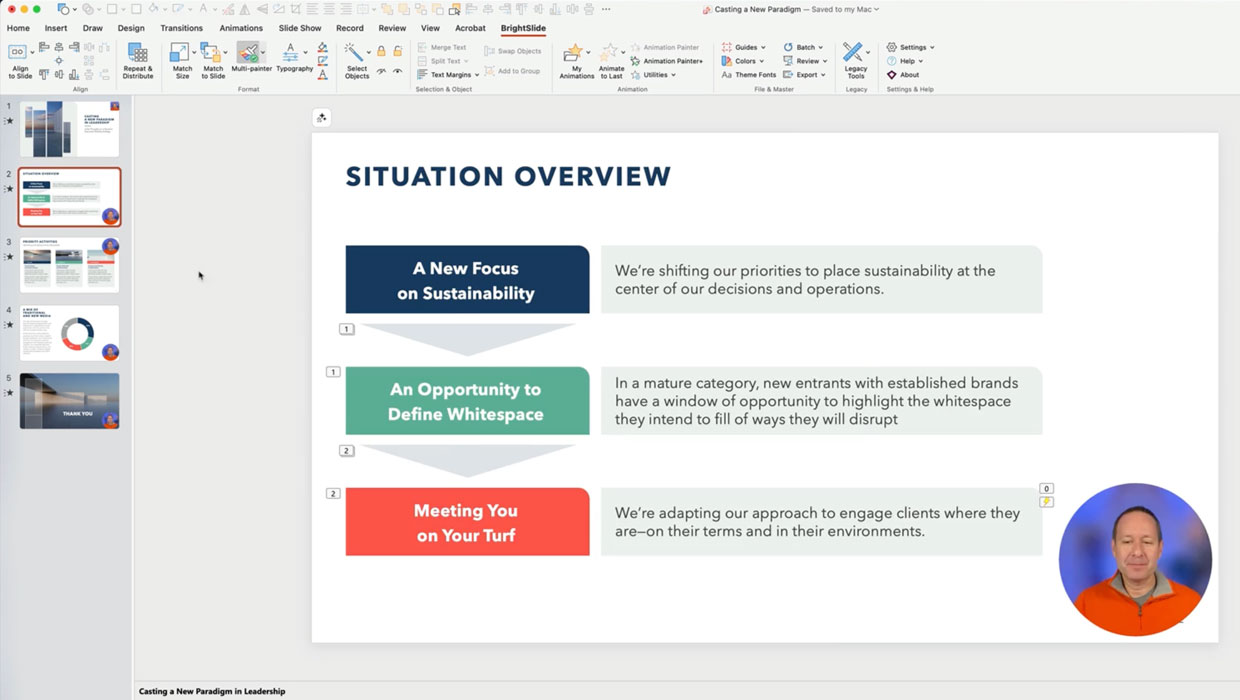
Members-Only Video: Using the Built-in Recording Tools in PowerPoint
Learn how to record your PowerPoint presentation so it can be played back later...
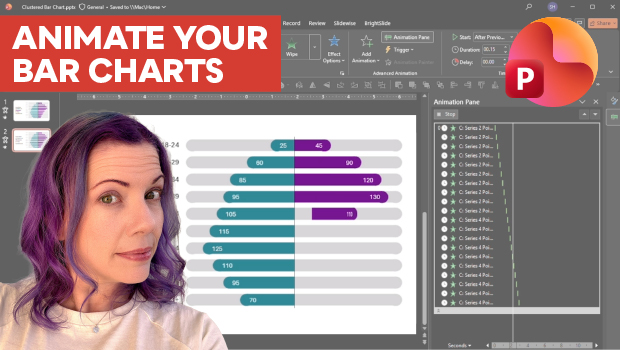
Animate a Waterfall Effect on a PowerPoint Bar Chart
Stephy Hogan is back with another eye-catching animated chart design.
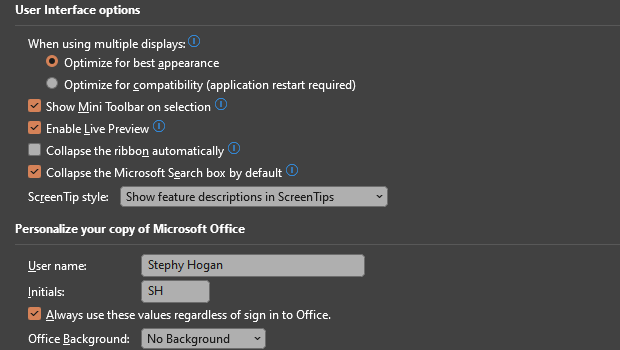
How to Turn Off Features You Don’t Want to Use in PowerPoint
The first step to making the PowerPoint UI a better place to work is to adjust s...