




HDR is cool, but because it requires multiple takes of the same scene that are nearly identical, you might think it’s impossible to achieve when you’re shooting objects that move.
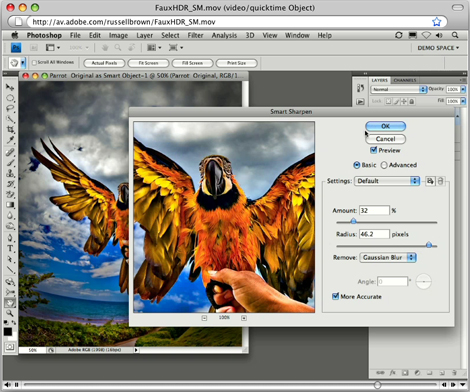
However, with Adobe Photoshop CS4 and this tutorial, you can create a faux HDR effect that adds an oversaturated, illustrative enhancement to underexposed images.
Stream the 10MB QuickTime tutorial in a separate window by clicking the image below.
This article was last modified on January 5, 2023
This article was first published on July 16, 2009
Commenting is easier and faster when you're logged in!

Recommended for you
How to Adjust Colors in Photoshop Using Hue and Saturation
Learn how to manipulate an image’s colors using Photoshop’s Hue and Saturation s...
How to Adjust Colors Using Photoshop’s Contextual Task Bar
Learn how to use the Photoshop Adjust Colors feature to make quick, non-destruct...

Using Photoshop’s Generative Fill to Remove Objects
Learn how to simply remove items from an image in Photoshop, without extra conte...