





If you like working with Photoshop FX, check out a free extension available on Adobe Exchange called tomaxxiFXcolor.
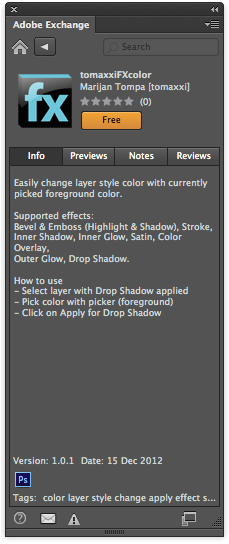
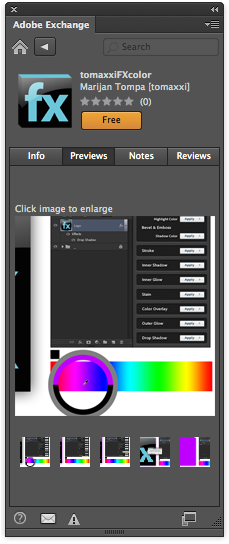
It simply allows you to apply the current foreground color to effects
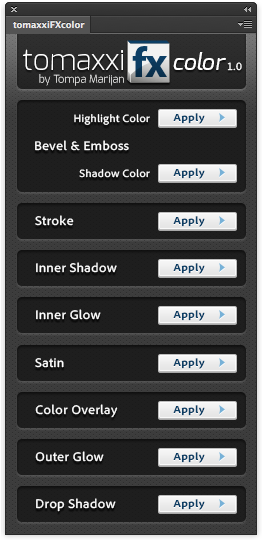
like Bevel and Emboss, Drop Shadow, Stroke, Color Overlay, etc, with a single click. Normally, if you wanted to change the color used in those effects to the foreground color, the process involves a multi-click trip through the Layers panel, the Layer Styles dialog box, the Color Picker, and the Tools panel. With tomaxxiFXcolor, it’s a one-click operation. You just click the Apply button for the effect you want to change (on the currently selected layer).
This article was last modified on December 17, 2012
This article was first published on December 17, 2012
Commenting is easier and faster when you're logged in!

Recommended for you
How to Turn a Photo into Graffiti in Photoshop
Create a spray-painted masterpiece in Photoshop with Steve Caplin.

Using Photoshop’s Generative Fill to Remove Objects
Learn how to simply remove items from an image in Photoshop, without extra conte...
How to Adjust Colors Using Photoshop’s Contextual Task Bar
Learn how to use the Photoshop Adjust Colors feature to make quick, non-destruct...