



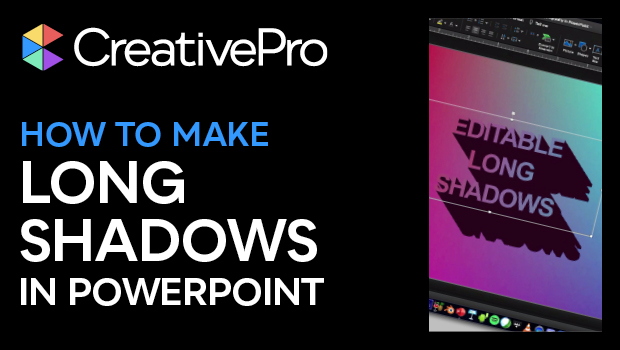
In this PowerPoint video, Steve Wishman shows how to add a “long shadow” style to text, all while keeping that text editable. By using PowerPoint’s built-in 3D tools, he is able to create this bold typographic look which can really make a slide’s text pop.
This video is an excerpt from Steve’s “Making Type Look Great in PowerPoint” session at CreativePro Week.
This article was last modified on August 29, 2025
This article was first published on February 17, 2022
Commenting is easier and faster when you're logged in!

Recommended for you
How to Keep AI-Generated Presentations Fully Editable
An AI-assisted workflow that actually works, so your files are beautiful and fun...
How to Make an Animated GIF in PowerPoint
Create a looping animation in PowerPoint using the Morph transition.
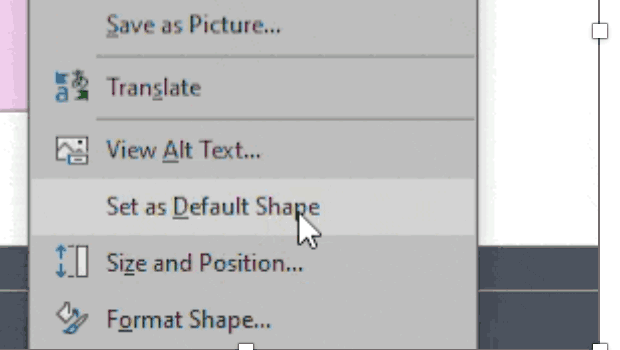
How to Set Default Shapes, Lines, and Text Box Styles in PowerPoint
One way to make working in PowerPoint smoother is to set default shapes, lines,...