




In a recent browse through the InDesign Scripting Forum, I came across another little gem, a script you can use to apply cell styles based on the content within those cells. You can get the script here. You’ll need to open it in a script/text editor and make a couple changes to match your needs, but it’s pretty simple.
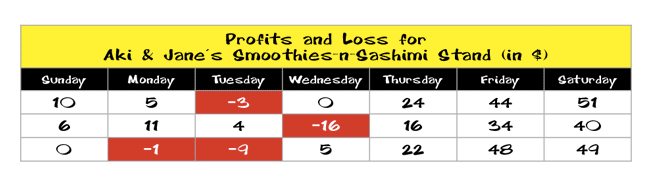
I can imagine all kinds of uses for this script. For example, you could apply a different style to cells containing negative numbers, to highlight losses in a financial table, saving you the drudgery (and potential mistakes) of finding and formatting them manually.
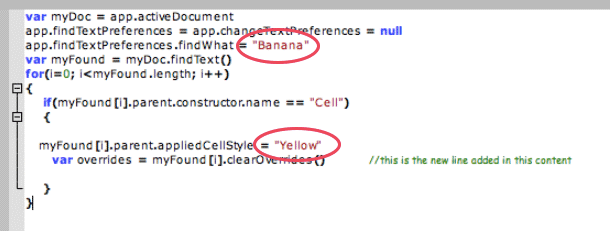
To tailor the script to your needs, just change the findWhat value inside the quotes in line 3 (the default is Banana), to what you’re looking for. And then change the appliedCellStyle value in line 10 to the name of the cell style you want to apply (the default is Yellow).
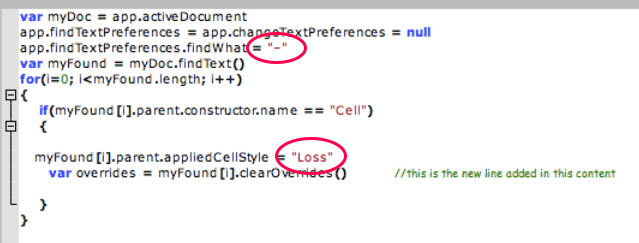
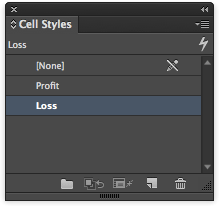
In this case, I want to find all cells containing a minus sign and apply the cell style Loss, which fills the cell with red and changes the paragraph style applied to the text in the cell.
The script searches the whole document, so you don’t need to select anything prior to running it.
Before
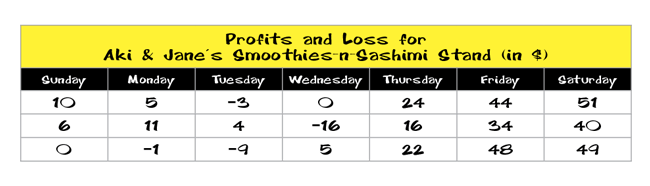
After
Note that the script will remove overrides to the cell style.
Also in the scripting forums you can find a script to apply a table style based on content here.
I love how scripts can make InDesign smarter and save you so much time—which could be better spent on building your dream Smoothies-n-Sashimi stand!
This article was last modified on March 19, 2021
This article was first published on September 15, 2014
Commenting is easier and faster when you're logged in!

Recommended for you

Accessibility Plug-ins for InDesign
Generate PDFs that are more accessible with more ease by using these two new plu...

The 5 Rules of Efficiency for InDesign
You'll rake in the efficiency jackpot every time with these five basic rules.

MATE: Your AI Helper in InDesign and Illustrator
Rediscover the joy of design with this AI extension.