



This tutorial is courtesy of the Russell Brown Show.
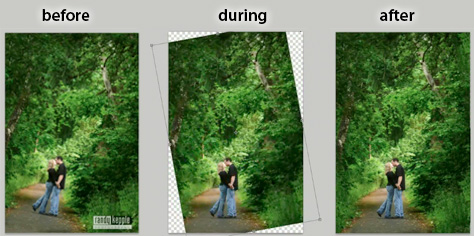
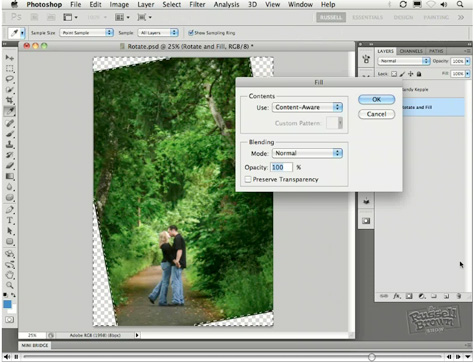
Content-Aware Fill is a jaw-dropping feature, new to Photoshop CS5, that intelligently matches the lighting, tone, and noise levels of surrounding areas as you retouch a photo. But here’s one use you might not have thought of for Content-Aware Fill: filling in the empty corners that result when you rotate a photo to straighten it.
If you don’t have Photoshop CS5, you can still follow along with this tutorial by downloading the free trial.
Click this image below to view the video tutorial in a separate window:
This article was last modified on January 6, 2023
This article was first published on May 5, 2010
Commenting is easier and faster when you're logged in!

Recommended for you

Using Photoshop’s Generative Fill to Remove Objects
Learn how to simply remove items from an image in Photoshop, without extra conte...
How to Adjust Colors Using Photoshop’s Contextual Task Bar
Learn how to use the Photoshop Adjust Colors feature to make quick, non-destruct...

How to Turn a Photo into Graffiti in Photoshop
Create a spray-painted masterpiece in Photoshop with Steve Caplin.