




This tip was sent to Tip of the Week email subscribers on December 11, 2014.

Sign up now and every week you’ll get a new InDesign Tip of the Week and Keyboard Shortcut of the Week, along with roundups of new articles at InDesignSecrets and CreativePro, plus exclusive deals sent right to your Inbox!
Just scroll all the way down to the bottom of this page, enter your email address, and click Go! We’ll take care of the rest. Now, on with the tip!
When you want to prevent yourself from editing an object on the page, lock it by pressing Cmd/Ctrl+L. To unlock just the object, click the lock icon at the edge of its frame.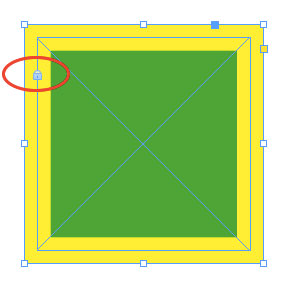
To unlock everything on the spread, press Cmd+Opt+L (Ctrl+Alt+L). Another way to lock objects is to use InDesign’s Layers panel to individually lock any item on the page.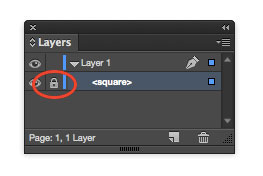
Bonus tip: If you want to just lock the position and size of objects, but still be able to change their appearance, open InDesign’s General preferences and de-select Prevent Selection of Locked Objects.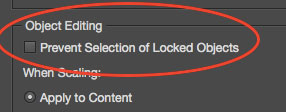
This article was last modified on June 30, 2023
This article was first published on December 16, 2014
Commenting is easier and faster when you're logged in!

Recommended for you
How to Make an Animated GIF in PowerPoint
Create a looping animation in PowerPoint using the Morph transition.

Free Webinar: Accessibility Essentials
Learn the foundational concepts, terminology, and best practices that every desi...
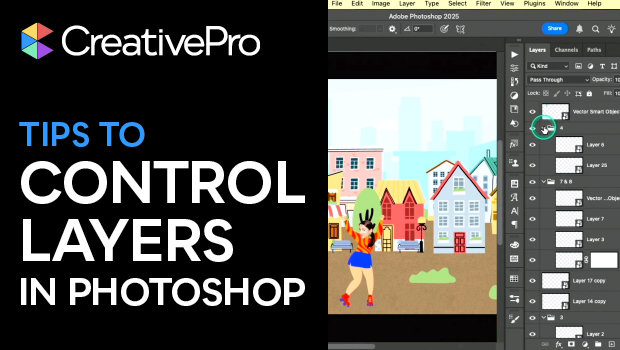
Tips to Control Photoshop Layers
Khara Plicanic shares smart Photoshop Layers panel tips to help you find and man...