


Photoshop How-To: Go from Snapshot to Watercolor

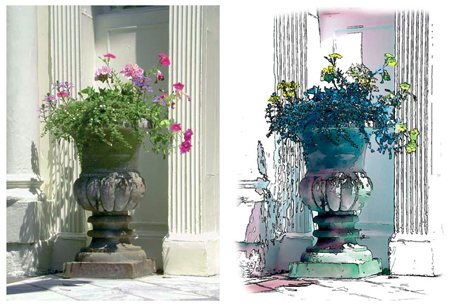

Whether you’re trying to disguise a ho-hum digital photo or explore your fine-art side, this technique for turning a photo into a watercolor or a pen-and-ink sketch is sure to satisfy.
The clearly defined steps and abundant screenshots make it easy to follow along. You can choose to mimic a watercolor, a pen-and-ink sketch, or combine the two into a pen and ink with a watercolor wash.
We’ve posted this excerpt as a PDF file. Just click the link “Transform Photos” to open the PDF file in your Web browser. You can also download the PDF to your machine for later viewing.
To open the PDF, you’ll need a full version of Adobe Acrobat (5 or higher) or the Adobe Reader, which you can download here:
 .
.
To learn how to configure your browser for viewing PDF files, see the Adobe Reader tech support page.
Excerpted from “50 Fast Photoshop CS Techniques” by Gregory Georges. Copyright © 2004 Wiley Publishing. All rights reserved. Reproduced here by permission of the publisher.
This article was last modified on January 3, 2023
This article was first published on June 8, 2005
Commenting is easier and faster when you're logged in!

Recommended for you
How to Turn a Photo into Graffiti in Photoshop
Create a spray-painted masterpiece in Photoshop with Steve Caplin.

How to Adjust Colors in Photoshop Using Hue and Saturation
Learn how to manipulate an image’s colors using Photoshop’s Hue and Saturation s...

Using Photoshop’s Generative Fill to Remove Objects
Learn how to simply remove items from an image in Photoshop, without extra conte...