



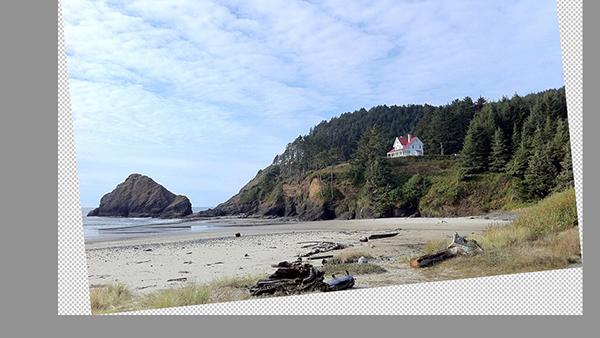
Since I can remember, I’ve been told I was a little off-kilter. Whether or not that’s true about me, it is an issue with several of the photos I take. I’m not alone, as many of the photos I receive for projects are as tilted as Italy’s iconic tower. Photoshop gives us a couple of ways to straighten a crooked image with very little effort.

I was too pre-occupied with not tripping over a log to worry about my horizon.
The first approach is super old-school and the way I still tackle this fix. Old habits refuse to die, I guess. This method isn’t readily apparent and maybe it makes me feel like I have a hidden superpower.
Straightening Images with the Ruler Tool
If you have a pre-CC 2015 version of Photoshop, this method is for you.
- Go to the Tools panel and choose the Ruler tool (nested under the Eyedropper tool).
- Click and drag along the horizon, or any plane you want to make horizontal or vertical.
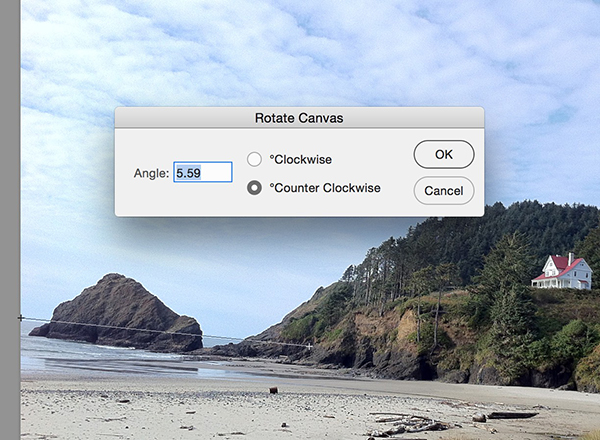
- In the Image menu, choose Image Rotation > Arbitrary.
- The values and direction are filled in with info from the Ruler tool, so just click OK.
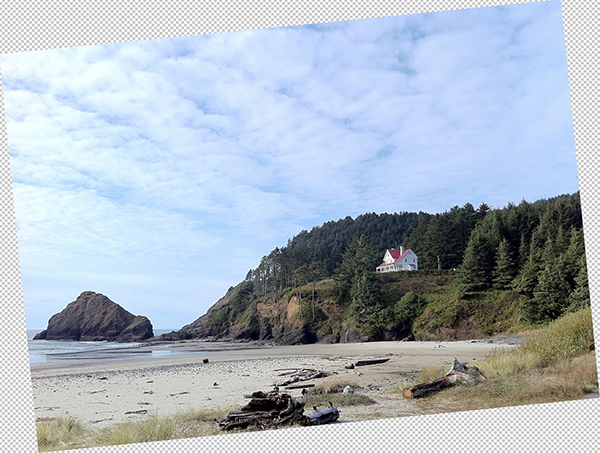
- You’ll have to crop the image to accommodate the blank bits of canvas created by the rotation.
Using the Straighten Button
Newer features have made the process a little more straightforward and easier. The Straighten button in the Control panel works like the old-school method, but in reverse.
- Select the Crop tool in the Tools panel, move the handles to crop if needed.
- Click the Straighten button.
- With the Straighten tool that appears (it looks like a level), drag it along the horizon, then release.
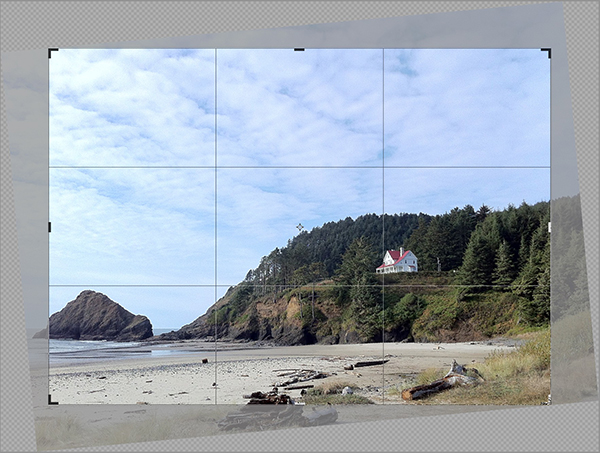
- The crop even automatically adjusts to get rid of any empty canvas areas created by the rotation!
Just Because It’s a Classic…
Sometimes an old dog knows there’s a new trick, but she just doesn’t want to learn it. But in this case, considering how many crooked images I have to fix, the Straighten button is my new best friend!
This article was last modified on February 27, 2017
This article was first published on February 27, 2017
Commenting is easier and faster when you're logged in!

Recommended for you
Free Webinar: Photoshop Power Hour
Learn the latest Photoshop techniques and pro-level tips to help you work faster...

Creating Fluffy Text with AI in Photoshop
How to create a fun text effect that looks like fluffy fur on a grass background...
Work Week Projects: Get Get a Grip on Photoshop’s AI Tools
Five quick exercises to do while you're at work to get comfortable using the gen...