


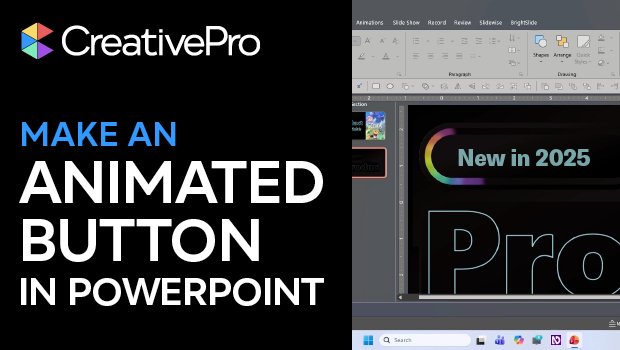
In this PowerPoint how-to video, Stephy Hogan demonstrates how to create a fun micro-animation of a moving rainbow outline on a button. Using merged shapes and colored, transparent circles, she shows how to build a button with a custom path for her rainbow colors to follow. Finally, Stephy uses the free BrightSlide add-in to create a waterfall delay and masks her button to create her traveling rainbow!
Subscribe to the CreativePro YouTube channel for more helpful design tips!
This article was last modified on March 11, 2026
This article was first published on March 11, 2026
Commenting is easier and faster when you're logged in!

Recommended for you
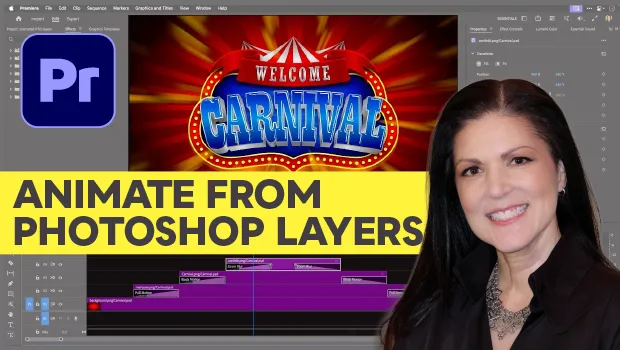
Animating a Photoshop Document with Premiere
Put your Photoshop files in motion with Adobe Premiere!
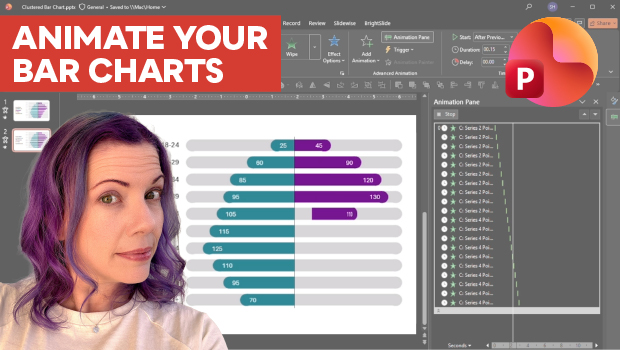
Animate a Waterfall Effect on a PowerPoint Bar Chart
Stephy Hogan is back with another eye-catching animated chart design.

Example Course
This course content shows under the About tab on the main Course page. You can l...