



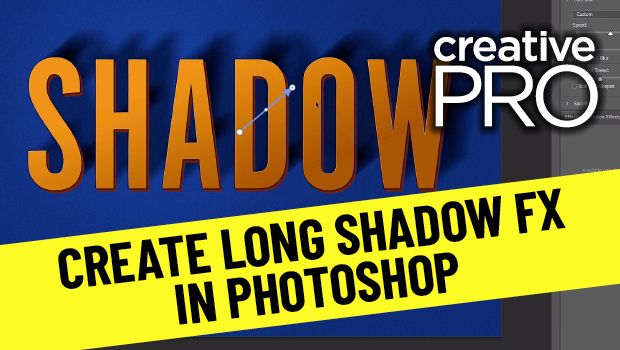
In this “Three Minutes Max” video, Jesús Ramirez shows a quick way to create a long shadow effect on type—or any Photoshop element. Using a Smart Object and Path Blur options, he gives his text a more realistic cast shadow in just a few easy steps.
New videos every other Tuesday on our CreativePro YouTube channel. Be sure to subscribe so you don’t miss any!
This article was last modified on August 29, 2025
This article was first published on October 5, 2021
Commenting is easier and faster when you're logged in!

Recommended for you
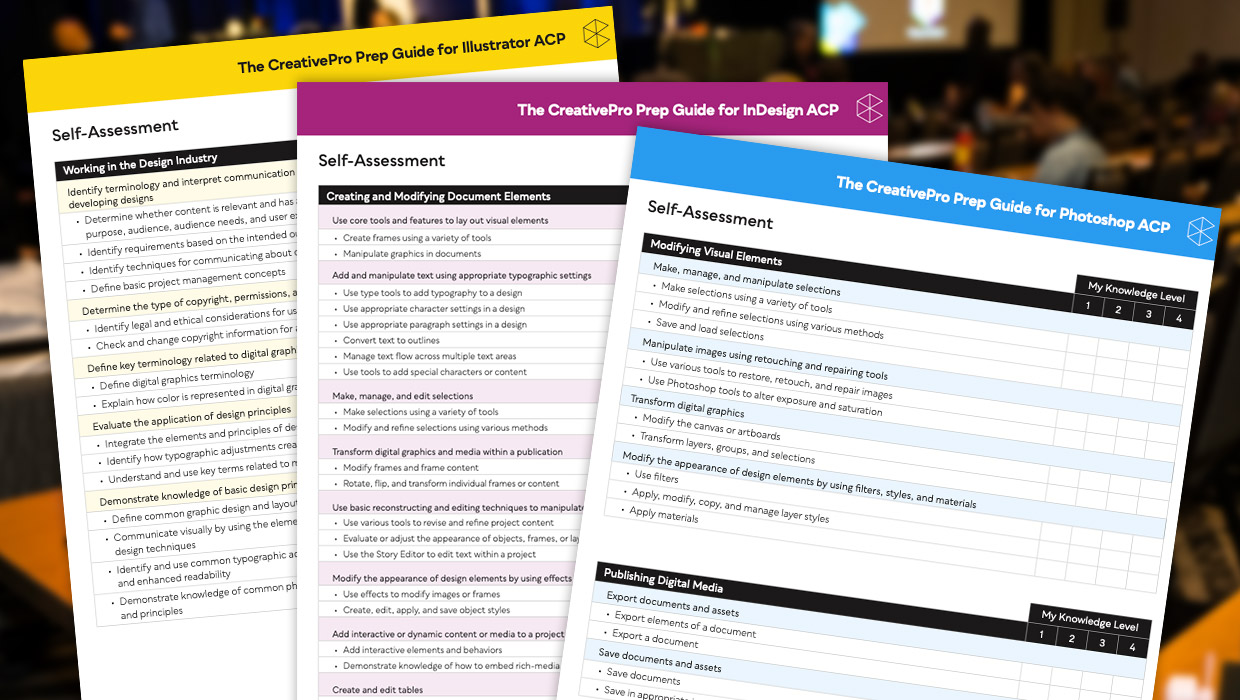
Adobe Certified Professional Exam Prep Guides
Use these self-assessment guides to determine what you should study to pass the...

Interview with Rob de Winter, AI Trailblazer and Educator
Q&A with Rob de Winter, who is presenting at The Design + AI Summit 2025
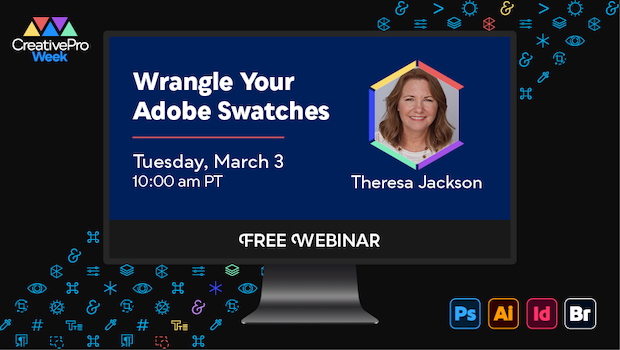
Free Webinar: Wrangle Your Adobe Swatches
Learn practical, time-saving ways to organize, share, and control color across A...