



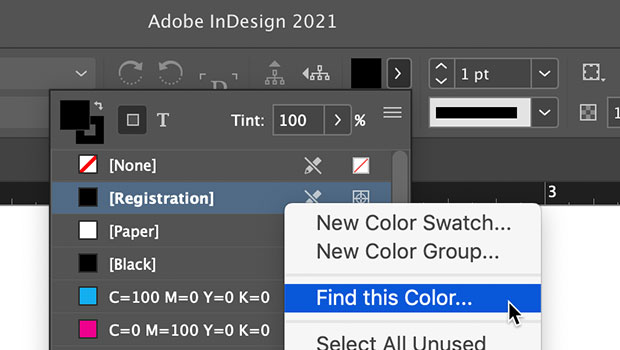
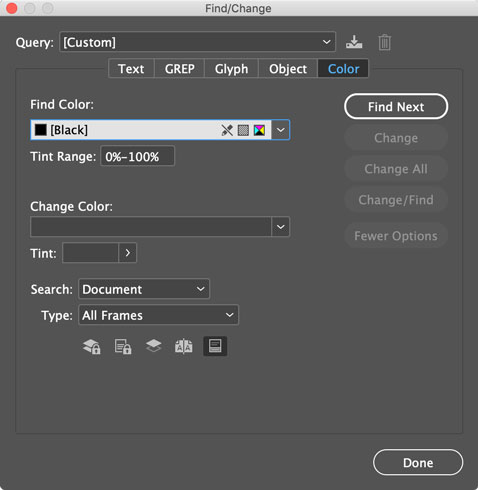
The ability to find where colors are used in your InDesign documents was added in the October 2020 release. You can access the feature in the Find/Change dialog. There you can choose from a list of swatches, define a tint range and scope for the search.
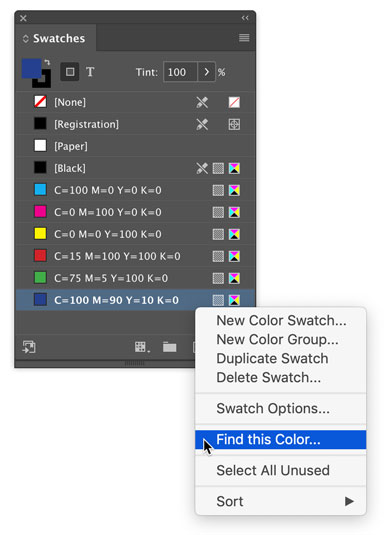
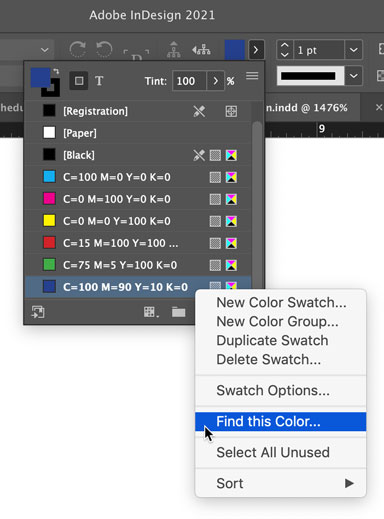
A nifty shortcut is to right-click on a swatch in the Swatches panel and choose Find This Color.
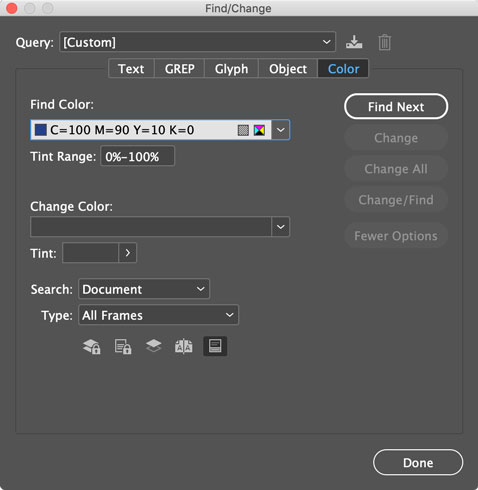
The Find/Change dialog will open to the Color tab and the swatch will be loaded into the Find Color field.
The same shortcut works in the list of swatches in the Control panel and Properties panel.
Bonus tip 1: You can use keyboard shortcuts to switch between the tabs in the Find/Change dialog.
Command/Ctrl+1: Text tab
Command/Ctrl+2: GREP tab
Command/Ctrl+3: Glyph tab
Command/Ctrl+4: Object tab
Command/Ctrl+5: Color tab
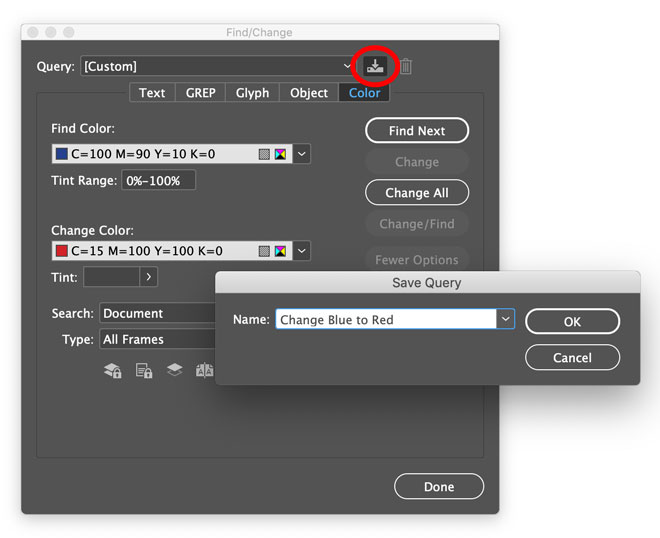
Bonus tip 2: If you have to find and/or replace specific colors on a regular basis, click the Save Query button at the top of the Find/Change dialog. Then you can save even more time by picking your saved query from the list whenever you need to run it.
This article was last modified on December 29, 2020
This article was first published on December 28, 2020
Commenting is easier and faster when you're logged in!

Recommended for you

Free Webinar: Visualize Ideas Faster with Adobe Firefly Boards
Learn how Adobe Firefly Boards can help you brainstorm, organize ideas, and expl...
How to Collapse All Layer Groups in Photoshop
Khara Plicanic shows how to manage your layer groups in Photoshop with one quick...

How to Export Videos in Different Aspect Ratios from Premiere
Quickly reframe your video for any social media platform with Myra Ferguson.