




One of the new features in InDesign 2020 allows you to reverse the direction of a spell check, which can be very helpful if you clicked the Skip button too fast and need to go back to a word that isn’t spelled right. But it won’t help you if you clicked the Ignore All button by accident. When you click Ignore All, you tell InDesign to add the word to your User Dictionary, so it won’t be flagged in any future spell checks.
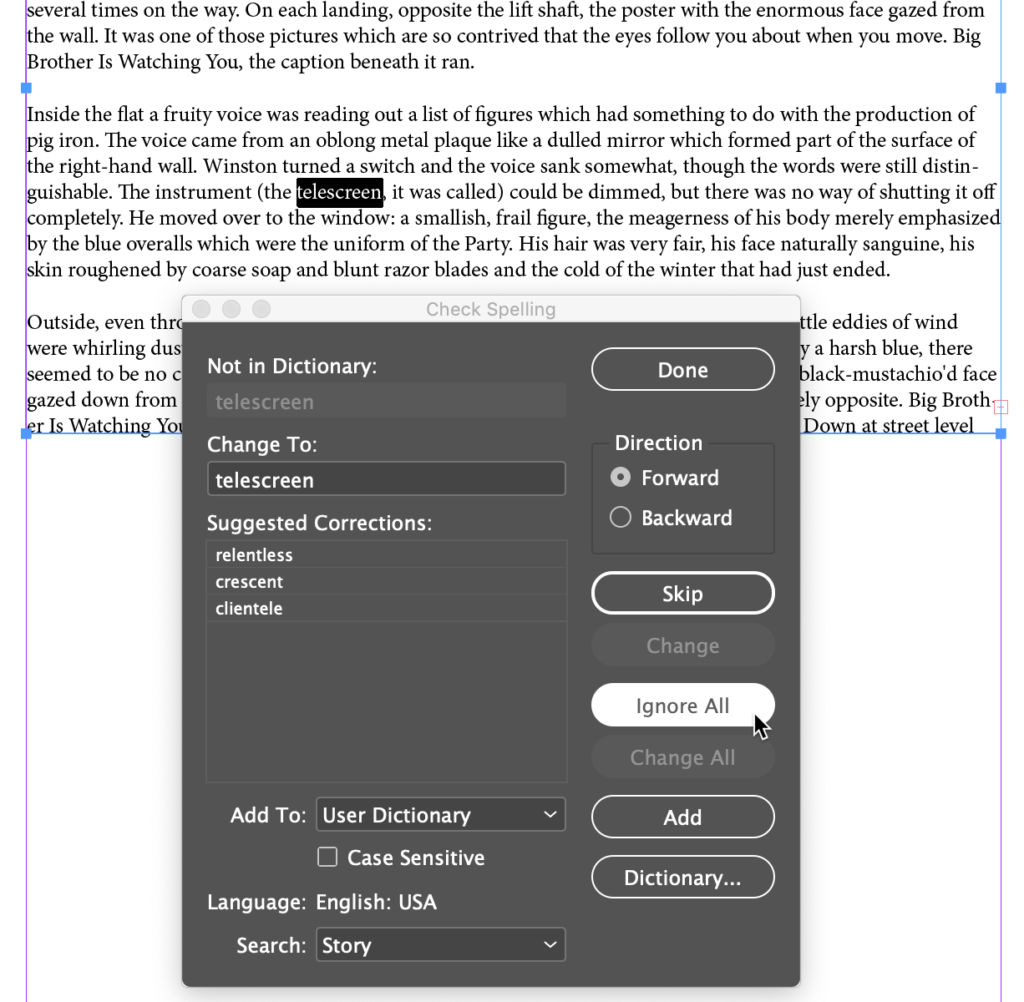
To remove the word from your User Dictionary, choose Edit > Spelling > User Dictionary. Then in the dialog box, choose Ignored Words from the Dictionary List menu.
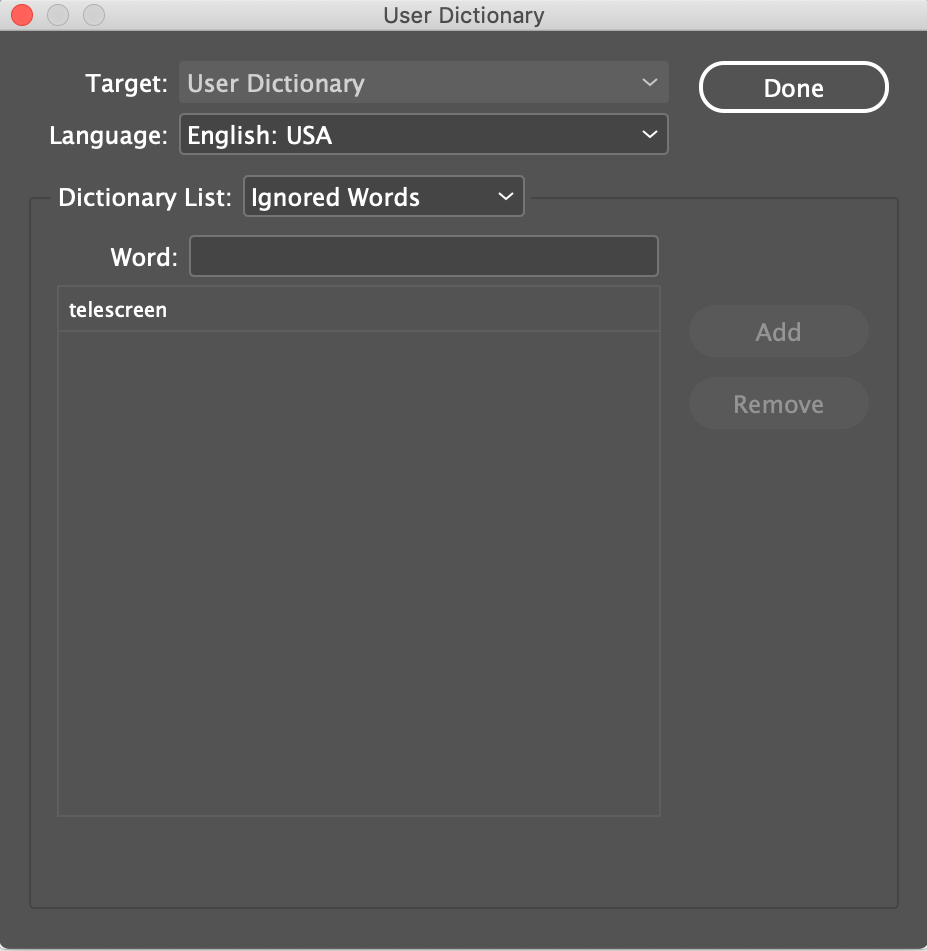
Click on the word, then click Remove.
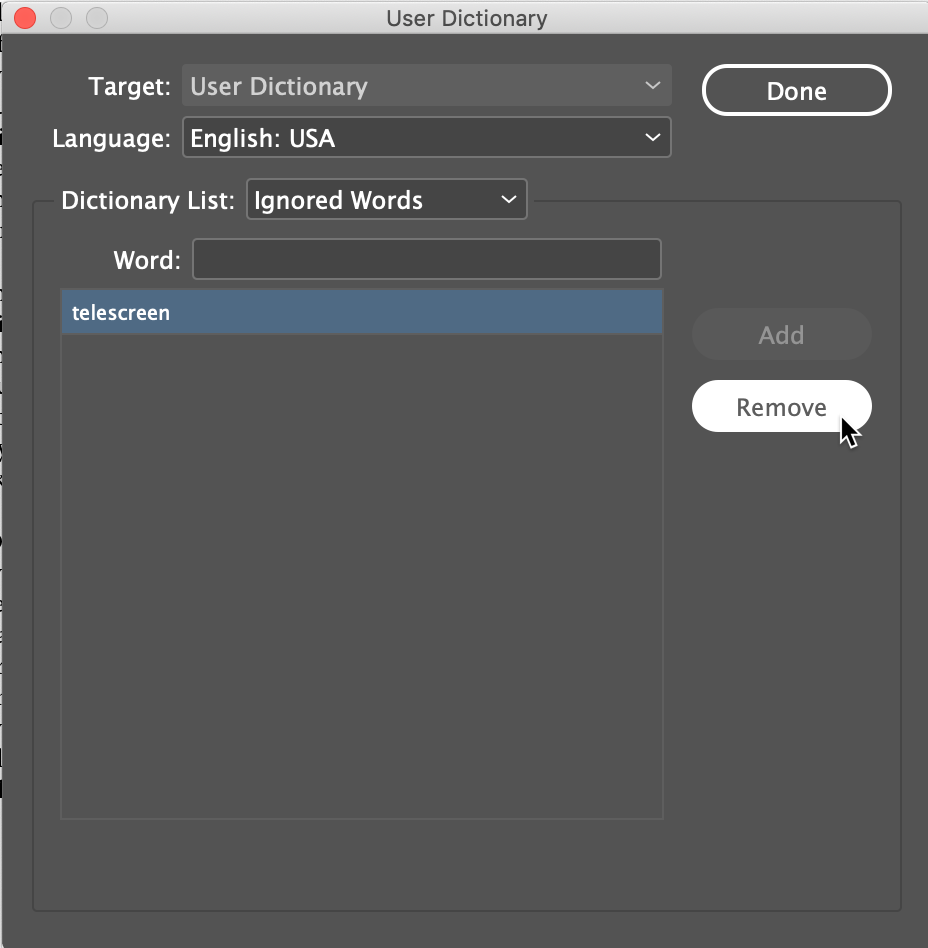
Now, the un-ignored word will be flagged again when you spell check.
This article was last modified on May 7, 2020
This article was first published on November 18, 2019
Commenting is easier and faster when you're logged in!

Recommended for you
How to Collapse All Layer Groups in Photoshop
Khara Plicanic shows how to manage your layer groups in Photoshop with one quick...

Quick Wins: Presentation Design Skills
Use these five resources to boost your presentation design and production skills
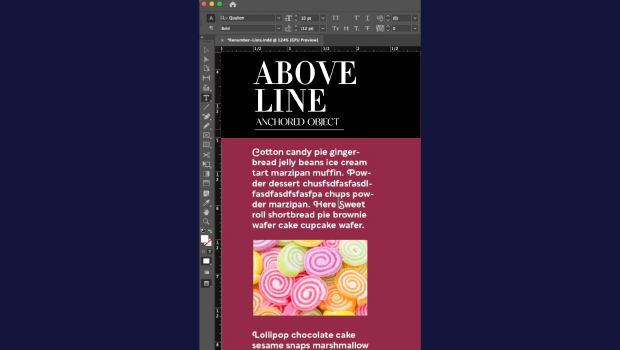
How to Make Graphics Flow with Text in InDesign
Khara Plicanic demonstrates how to add a graphic between paragraphs so it flows...