




Most InDesign users know the simple keyboard shortcut for toggling fill/stroke of an object: Shift+X. Press it, and a selected frame with black stroke and no fill becomes a frame with a black fill and no stroke.
But what about live text? Naturally, if you press Shift+X, any selected text will be replaced with a capital X.
Fortunately, there’s an easy fix: create a custom keyboard shortcut for toggling stroke and fill colors.
1. Choose Edit > Keyboard Shortcuts
2. Choose or create a new custom set.
3. From the Product Area menu, choose Tools.
4. Select the Swap Fill and Stroke Colors command, and in the New Shortcut field, type your desired shortcut. Naturally, it must contain a modifier key like Command/Ctrl or Option/Alt. Shift+Option+X is close enough to the original shortcut that you’ll probably have an easy time remembering it.
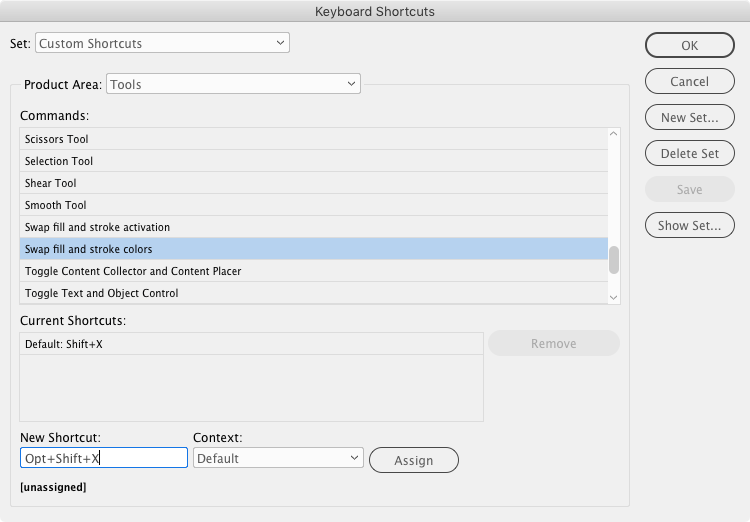
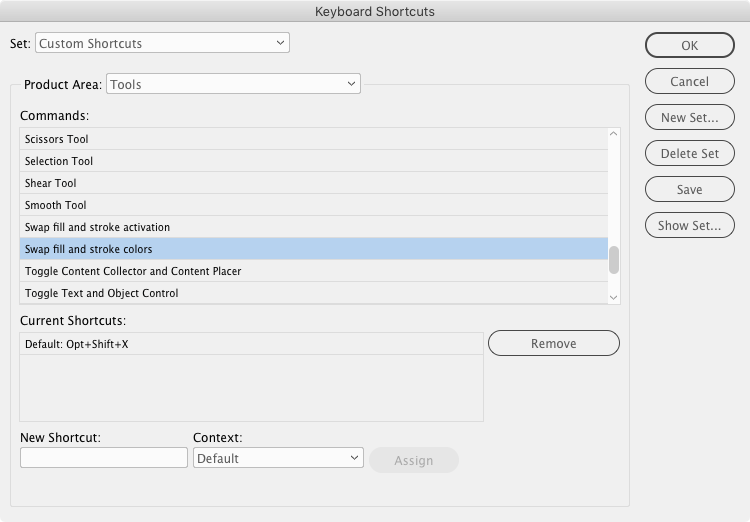
5. If you like, you can remove the original Shift+X shortcut. If you leave it in place, you just have to remember to use your new shortcut when toggling text colors.
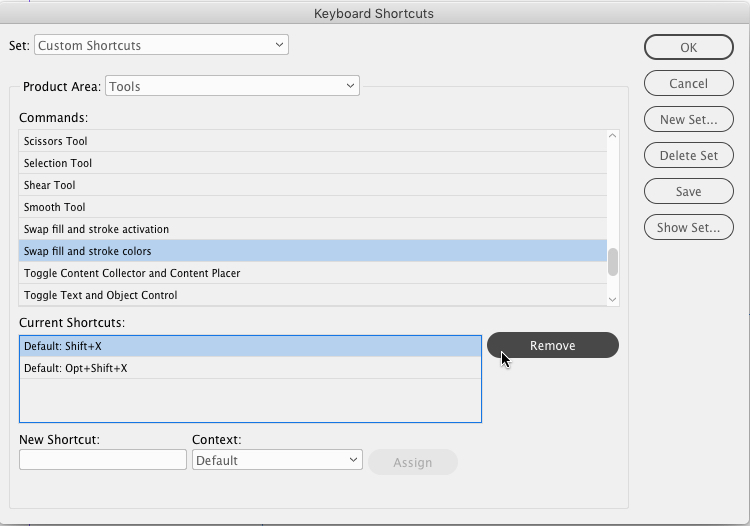
Or just get in the habit of using your new shortcut whenever you want to swap stroke and fill colors.
Thanks to Andreas Norén for sharing this cool tip!
This article was last modified on July 7, 2021
This article was first published on November 6, 2018
Commenting is easier and faster when you're logged in!

Recommended for you

10 Terrific Time Savers for InDesign
Life is busy. Work is hard. Use these tips to get more done faster.

The 5 Rules of Efficiency for InDesign
You'll rake in the efficiency jackpot every time with these five basic rules.

7 Reasons Why You Belong at the InDesign User Group
If you’re an InDesign user, you’ll dig the IDUG