



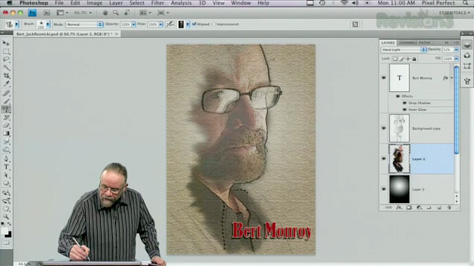
In this example of turning a photograph into a drawing, professional artist and Photoshop expert Bert Monroy shows you how to make a photograph look like a hand-drawn image on canvas.
First, you’ll open a portrait in Photoshop and turn the entire image into a pattern (Select > All, Edit > Define Pattern). You’ll duplicate the image in a new layer, then apply the Find Edges filter (Filter > Stylize).
Next you’ll desaturate the image, then change the layer style to multiply. This makes black drawing lines appear over the original photograph. In a new layer between the drawing and the original photo, you’ll fill the image with a tan color, then apply a texturize filter to make the background look like a canvas. You’ll also turn down the opacity of the drawing layer.
Finally, Bert will show you a few special tricks to take your image into the hyper-realistic realm he does so well.
To open the complete video tutorial in a new window, click on the image below:
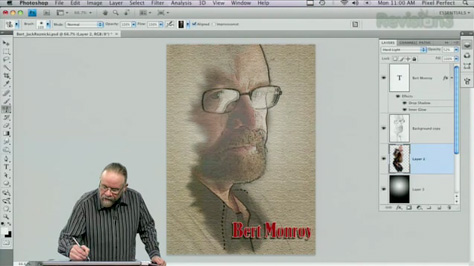
There are ads in the beginning, and the how-to begins at minute 2:25.
This article was last modified on January 6, 2023
This article was first published on July 12, 2010
Commenting is easier and faster when you're logged in!

Recommended for you
How to Turn a Photo into Graffiti in Photoshop
Create a spray-painted masterpiece in Photoshop with Steve Caplin.
How to Adjust Colors Using Photoshop’s Contextual Task Bar
Learn how to use the Photoshop Adjust Colors feature to make quick, non-destruct...

Using Photoshop’s Generative Fill to Remove Objects
Learn how to simply remove items from an image in Photoshop, without extra conte...